
Switch CRMs. Keep every record.
More and more businesses are moving from Salesforce to Zoho CRM. The main reasons we hear: lower licence costs, an all-in-one suite with Zoho One, and simpler day-to-day administration. But a CRM migration done carelessly can lose years of customer history.
Here is the step-by-step Salesforce to Zoho CRM migration process we use to move clients safely.
Why companies switch from Salesforce to Zoho
- Cost: Zoho CRM's licence cost is a fraction of comparable Salesforce editions.
- Suite: Zoho One adds accounting, marketing, help desk, HR and analytics under one subscription.
- Simplicity: many teams can manage Zoho day to day without a full-time admin.
- Customisation: custom modules, blueprints and Deluge cover most of what businesses built in Salesforce.
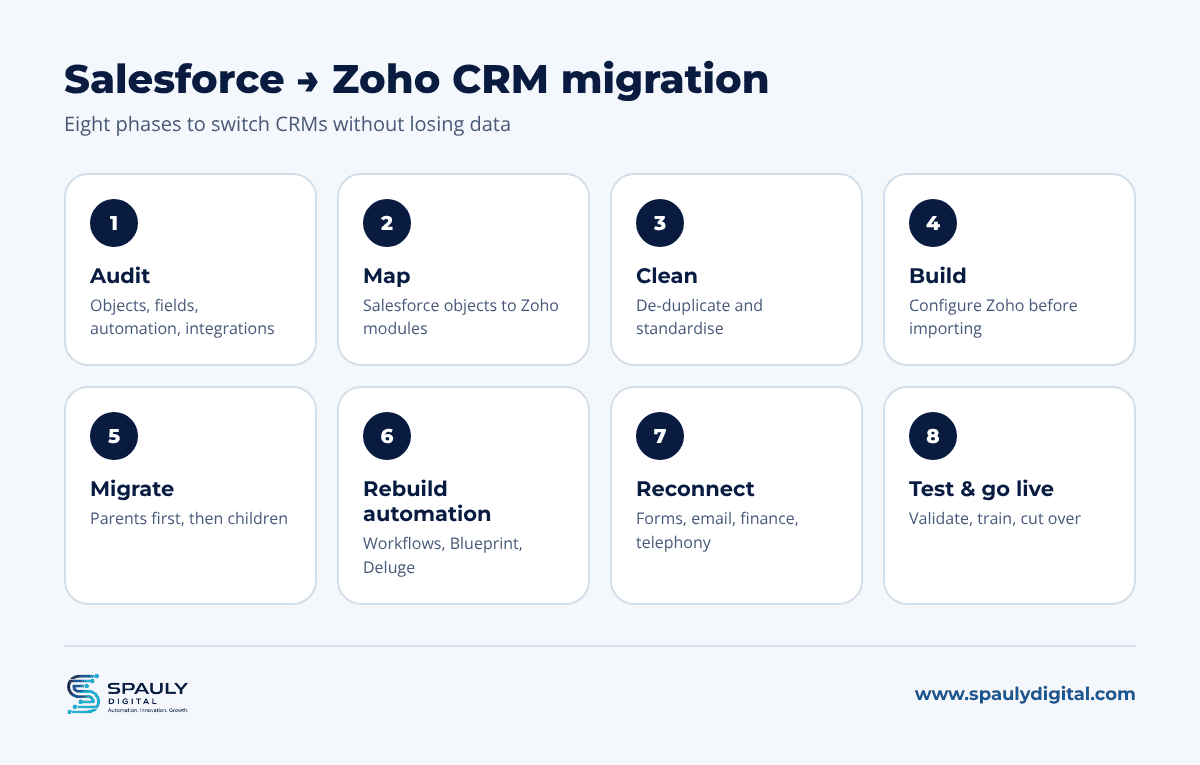
Phase 1: Audit your Salesforce org
Before moving anything, document what you have:
- Objects – standard (Leads, Accounts, Contacts, Opportunities, Cases) and custom objects.
- Fields – picklists, formulas, lookups, required fields.
- Record counts – how many records per object, and how many are still useful.
- Automation – Flows, process builders, validation rules, Apex triggers, email alerts.
- Integrations – website forms, marketing tools, accounting, telephony.
- Reports and dashboards that leadership relies on.
- Users, roles and profiles.
This audit is also a chance to clean house. Most orgs carry fields and automations no one uses anymore.
Phase 2: Map Salesforce to Zoho CRM
Create a mapping document object by object:
| Salesforce | Zoho CRM |
|---|---|
| Leads | Leads |
| Accounts | Accounts |
| Contacts | Contacts |
| Opportunities | Deals |
| Cases | Cases (or Zoho Desk tickets) |
| Products / Price Books | Products / Price Books |
| Custom objects | Custom modules |
| Flows / Process Builder | Workflow rules, Blueprint, Deluge functions |
| Validation rules | Validation rules / layout rules |
Map every field, including data types and picklist values. Decide which fields are being retired.
Phase 3: Prepare and clean the data
- Export data from Salesforce (Data Export Service or Data Loader).
- Remove duplicates, test records and obsolete fields.
- Standardise formats (phone numbers, dates, countries, currencies).
- Preserve Salesforce record IDs in a custom field so relationships can be rebuilt and audited later.
Phase 4: Build the Zoho CRM structure
Configure Zoho CRM before importing: modules, fields, layouts, pipelines, roles, profiles and sharing rules. Import into an empty, well-designed structure — never the other way round.
Phase 5: Migrate in the right order
Relationships matter, so import parent records before children:
- Users
- Accounts
- Contacts
- Leads
- Deals (linked to accounts and contacts)
- Products and price books
- Custom module records
- Activities – tasks, events, calls, notes
- Attachments and emails (where needed)
Zoho offers a migration wizard for Salesforce, and for complex orgs we use API-based scripts for full control.
Phase 6: Rebuild automation the Zoho way
Do not copy Salesforce automation line by line. Rebuild it using the best Zoho tools: workflow rules for simple triggers, Blueprint for guided processes, approval processes, and Deluge custom functions for advanced logic and API calls. This is often the moment to simplify.
Phase 7: Reconnect integrations
Reconnect website forms (Zoho Forms or webhooks), email, marketing (Zoho Campaigns or your existing platform), accounting (Zoho Books, QuickBooks, Xero) and telephony.
Phase 8: Test, train and go live
- Validate record counts per module against Salesforce.
- Spot-check 20–50 records end to end, including relationships and history.
- User acceptance testing with real users on real scenarios.
- Training by role, with written guides.
- Cut-over plan – freeze Salesforce edits, run a final delta migration, switch everyone to Zoho on a set date.
Keep read-only access to Salesforce (or a full export) for a period after go-live, just in case.
7 common CRM migration mistakes (and how to avoid them)
- Migrating everything "just in case". Old, unused fields and records clutter the new system. Archive what you don't need.
- Losing relationships. If contacts are imported before their accounts, links break. Always follow the parent-child order and keep legacy IDs.
- Ignoring picklist values. Mismatched dropdown values cause import errors or blank fields. Standardise them in the mapping document.
- Forgetting record owners. Create users in Zoho first so every record keeps the right owner.
- Skipping the test migration. A trial run on a sample exposes problems while they are cheap to fix.
- Rebuilding automation before data is in. Turn automations off during import, or you may trigger thousands of emails and tasks by accident.
- Underestimating change management. Users who loved (or hated) Salesforce need to understand why the change is happening and how Zoho makes their day easier.
What data can be migrated?
Almost everything business-critical can move to Zoho CRM:
- Leads, contacts, accounts and deals with full field data
- Products, price books, quotes and sales orders
- Cases and solutions (to Zoho CRM or Zoho Desk)
- Custom objects as custom modules
- Notes, tasks, events and call logs
- Attachments and files
- Email history (depending on how it was stored)
Reports, dashboards and automations are not "migrated" so much as rebuilt — which is a good opportunity to keep only what the business really uses.
Salesforce to Zoho migration checklist
- ☐ Salesforce org audit completed
- ☐ Field mapping document signed off
- ☐ Data cleaned and de-duplicated
- ☐ Zoho CRM structure configured
- ☐ Test migration validated
- ☐ Automation rebuilt and tested
- ☐ Integrations reconnected
- ☐ Users trained
- ☐ Final migration and go-live
- ☐ Post-launch support plan in place
How long does a Salesforce to Zoho migration take?
A small org with standard objects can migrate in two to four weeks. Larger orgs with many custom objects, heavy automation and integrations typically take six to twelve weeks.
FAQs
Will we lose historical data when moving from Salesforce to Zoho? Not if the migration is planned properly. Historical records, activities and attachments can be preserved, and legacy Salesforce IDs stored for audit purposes.
Can we run Salesforce and Zoho in parallel? Briefly, yes — but keep the overlap short. Running two CRMs for long creates confusion about which data is current.
Does Zoho have an equivalent to Salesforce Flow? Zoho uses a combination of workflow rules, Blueprint, approval processes, Zoho Flow and Deluge custom functions to cover the same ground.
Migrate with a team that has done it before
Spauly Digital has delivered Salesforce-to-Zoho CRM migrations and CRM migrations to HubSpot, and works across Monday CRM and Pipedrive too. As a Zoho Authorized Partner, we plan the mapping, move your data safely, rebuild your automation and train your team — so the switch feels like an upgrade, not a disruption.
Need help with Zoho or your business systems?
Book a free consultation with Spauly Digital, a Zoho Authorized Partner. We design, build and support CRM, automation, website and digital marketing solutions for growing businesses.
Book a free consultationwww.spaulydigital.com · info@spaulydigital.com · 08145693491