
From sign-up to a CRM your team loves.
Zoho CRM is one of the most flexible CRM platforms in the world. That flexibility is a gift — and a trap. Set it up well and your team closes more deals with less admin. Set it up badly and you end up with a cluttered database nobody wants to open.
This step-by-step Zoho CRM setup guide walks through the exact sequence we use as Zoho implementation consultants.
Before you start: plan your CRM
Spend an hour answering these questions before touching any settings:
- Who will use the CRM? Sales reps, managers, support, finance?
- What is your sales process? List every stage from first contact to payment.
- Where do leads come from? Website, referrals, social media, ads, walk-ins, marketplaces.
- What do you need to report on? Revenue by month, lead source performance, rep activity.
- What other tools must connect? Email, accounting, WhatsApp, telephony, website forms.
Write the answers down. This becomes your CRM blueprint.
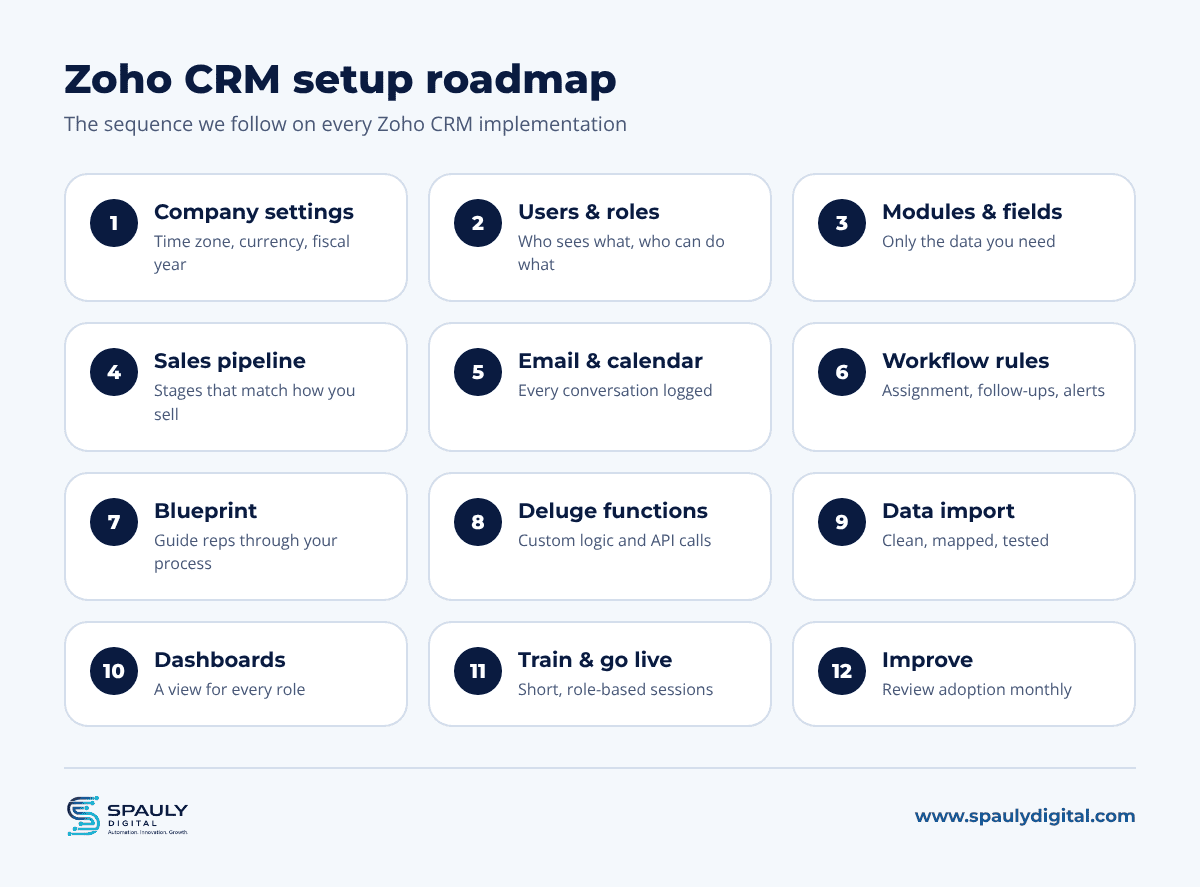
Step 1: Configure company settings
Go to Setup → Company Details and set your company name, time zone, currency (add multi-currency if you sell abroad), fiscal year and business hours. These settings affect reports and forecasts, so get them right first.
Step 2: Set up users, roles and profiles
Zoho CRM security has three layers:
- Roles control whose data a user can see (data sharing follows your org hierarchy).
- Profiles control what actions a user can perform (create, edit, delete, export).
- Data sharing rules open or restrict access to specific records.
A typical setup: CEO → Sales Manager → Sales Reps, with reps seeing only their own leads and managers seeing their team's.
Step 3: Customise modules, fields and layouts
The standard modules — Leads, Contacts, Accounts, Deals, Tasks, Meetings and Calls — cover most businesses. Customise them by:
- Removing fields you will never use (clutter kills adoption).
- Adding custom fields your business needs, such as Lead Source Detail, Service Interested In or Budget Range.
- Creating custom modules for things like Properties, Projects, Policies or Applications.
- Using layout rules to show or hide fields depending on answers.
Tip: Mark only essential fields as mandatory. Too many required fields and reps simply stop logging data.
Step 4: Build your sales pipeline
Under Deals, define pipeline stages that match how you actually sell, for example:
- Qualification
- Needs analysis
- Proposal sent
- Negotiation
- Closed won / Closed lost
Assign a probability to each stage so Zoho CRM can forecast revenue. If you sell different products with different processes, create multiple pipelines.
Step 5: Connect email and calendar
Integrate Zoho Mail, Gmail or Microsoft 365 so emails are logged against leads and contacts automatically. Sync calendars so meetings booked in the CRM appear in your team's calendars. Set up email templates for common messages such as introductions, follow-ups and proposals.

▶ Watch the video: Get to know Zoho CRM (Zoho CRM)
Step 6: Automate with workflow rules
Workflow rules are the engine of a productive CRM. Popular automations include:
- Lead assignment rules – distribute new leads by region, source or round-robin.
- Instant follow-up – send a welcome email when a web lead arrives.
- Task creation – create a call task for the owner within an hour of a new lead.
- Field updates – stamp the date a deal moved to each stage.
- Alerts – notify a manager when a high-value deal is created.
Step 7: Enforce your process with Blueprint
Zoho CRM Blueprint turns your sales process into a guided flow. Reps can only move a deal forward after completing required actions — for example, attaching a proposal before moving to Proposal Sent. Blueprints are ideal for regulated or multi-step processes like loan applications, insurance policies and onboarding.
Step 8: Extend with Deluge custom functions
When standard automation is not enough, Deluge (Zoho's scripting language) lets you build custom logic: calculate commissions, create records in other modules, call external APIs, or push data to Zoho Books. This is where an experienced Zoho developer adds real value.
Step 9: Import your data cleanly
Before importing:
- Remove duplicates and test records.
- Standardise phone formats, country names and capitalisation.
- Map each spreadsheet column to the right CRM field.
- Import in order: Accounts → Contacts → Deals → Notes and activities.
Run a small test import first and check the results before loading everything.
Step 10: Build reports and dashboards
Create dashboards for each role:
- Sales reps: my open deals, my tasks due today, my monthly target.
- Managers: pipeline by stage, conversion rate by source, rep leaderboard.
- Leadership: revenue forecast, won vs lost trends, customer acquisition by channel.
Step 11: Train your team and go live
Run short, role-based training sessions. Provide a one-page cheat sheet and a short video for each daily task. Agree on CRM rules ("if it's not in the CRM, it didn't happen") and review adoption weekly for the first month.
Common Zoho CRM setup mistakes to avoid
- Importing messy data without cleaning it.
- Creating dozens of custom fields "just in case".
- Building automation before the process is agreed.
- Giving everyone admin rights.
- Forgetting mobile – make sure reps install the Zoho CRM mobile app.
Zoho CRM setup FAQs
How long does Zoho CRM setup take? A standard setup for a small sales team takes one to three weeks. Complex setups with custom modules, blueprints and integrations take longer.
Which Zoho CRM edition should I choose? Lower editions suit basic pipelines, while higher editions add more blueprints, advanced customisation, custom modules at scale and Zia AI features. Feature limits change, so compare editions on Zoho's pricing page — or ask us. Many growing companies get better value from Zoho One, which includes the Enterprise edition of Zoho CRM.
Can Zoho CRM integrate with WhatsApp? Yes. Through tools like SMS-Magic and other marketplace extensions you can send and receive WhatsApp and SMS messages directly from CRM records.
Get a Zoho CRM that works the way you sell
Spauly Digital has configured Zoho CRM for property finance companies, insurance brokers, agencies, schools, retailers and service businesses across Nigeria, the UK, the US and beyond. We handle the full setup — modules, blueprints, Deluge automation, integrations, data migration and training — so your team can focus on selling.
Need help with Zoho or your business systems?
Book a free consultation with Spauly Digital, a Zoho Authorized Partner. We design, build and support CRM, automation, website and digital marketing solutions for growing businesses.
Book a free consultationwww.spaulydigital.com · info@spaulydigital.com · 08145693491